Convert Receipts to CSV with OCR and Import Into Your Accounting Software
Stop retyping receipts by hand, fighting Excel character corruption, watching line items collapse into one cell, and wrestling with PDFs you can't copy. Replace that month-end grind with a simple flow: photograph the receipt, define your columns once, get one row per receipt, export to CSV, and import into freee / Money Forward / Yayoi. Line items expand to one row per product via array columns, UTF-8 BOM prevents garbled text, and every value carries a bbox plus match_ratio you can check against the original. ¥10 per scan, no charge on failures, 100 free scans/month.
Month-end. A pile of receipts pulled out of your wallet and desk drawers. Picture that task of keying them into your accounting software one by one. Type the store name, type the date, type the total, then on to the next one. By the time you hit 30 of them your focus is gone, and you won't even notice when you fat-finger a digit. What makes "typing receipts by hand" hell isn't the volume — it's that the work is mindless yet unforgiving.
Try to scan them and paste into Excel, and a new wall goes up. Open the CSV and the Japanese text is garbled. The line items on a receipt (the list of what was bought) collapse, line breaks and all, into a single cell. A receipt that arrived as a PDF can't even be copied. In the end you line the originals up next to your screen and retype them by eye — which makes you wonder what the digitizing was even for.
This article is a practical how-to for replacing that work with this flow: photograph the receipt → decide your columns once → upload to get one row per receipt → export to CSV and import into freee / Money Forward / Yayoi. Read it not as a product manual, but as an answer to the question of how you clear out that month-end pile.
Try it first (no upload, 10 seconds)
The sample below is the result of running OCR on two real receipts. Hover over any field (store name, date, total, line items) and you'll see exactly where on the original the value was read from, highlighted right on top of the document. No upload, no login. Start by checking that each value really does point to that spot on the original.
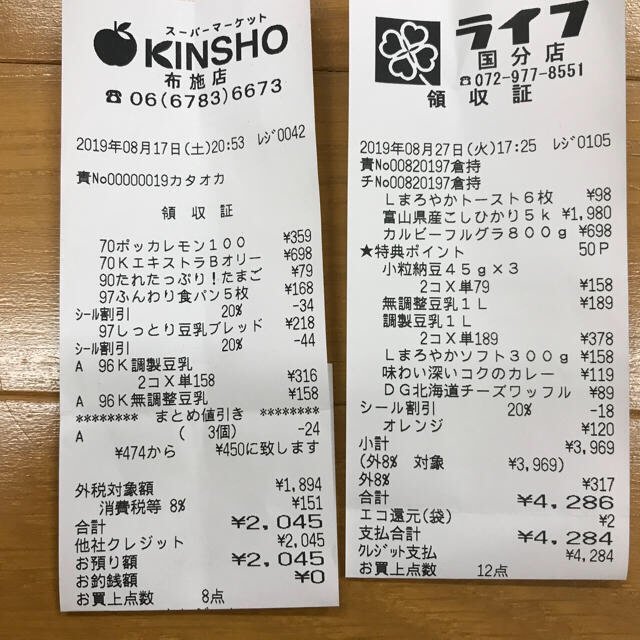
Every value carries a verified on-page location — bbox + 4-point vertices + match_ratio — on a 0–1000 normalized grid (0,0 top-left → 1000,1000 bottom-right), the same shape the live API returns. Hover a field to trace it back to the pixels it came from.
From receipt OCR to CSV in four real steps
There isn't much to it. Let's walk through the steps in order, with video.
- Upload the source images — feed your photographed or scanned receipts into the columns you defined (store name, date, total, line items…).
- Review the extraction sheet — each receipt becomes one row, and the columns fill in automatically.
- Verify against the original via bbox — click any value that looks off and the matching spot on the original lights up, so you can eyeball it instantly.
- Export to CSV — output a CSV ready to import straight into your accounting software.
First, step 1: when you upload your photographed/scanned receipts, each image is structured along the columns you defined.
You only define the columns (schema) once
The key is to decide your columns up front, just once. Define the items you want — say store name, branch, date, total, line items — and every receipt you upload afterward lines up into a row in the same shape (the same schema). The layout may differ from store to store, but the rows that come out share one shape. That's exactly what lets you roll everything up into a single CSV at the end.
What's really going on when "line items collapse into one cell"
The most painful part of doing Excel by hand is the line items on a receipt (the list of products bought). When one receipt has 10 product lines, your only options are to cram them into one cell or split them into 10 rows by hand.
In space-ocr, you define line items as an array-type column. When you export to CSV, that array column is expanded into child fields like line items.product name line items.unit price line items.quantity, fanning out vertically with one product = one row. So instead of "collapsing into one cell," the data comes out from the start in a row shape you can actually use for accounting and analysis.
{
  "columns": [
    { "name": "店舗名", "type": "string" },
    { "name": "支店名", "type": "string" },
    { "name": "日付",   "type": "string" },
    { "name": "合計",   "type": "string" },
    {
      "name": "明細",
      "type": "array",
      "children": [
        { "name": "商品名", "type": "string" },
        { "name": "単価",   "type": "string" },
        { "name": "数量",   "type": "string" }
      ]
    }
  ]
}
Click any suspicious value to jump to the original and check it
Once the read is done, you don't have to trust all of it. Click a cell you're unsure about and the spot on the original image it "was read from" gets highlighted. Your eyes jump straight to that location, so spot-checking the pile goes fast.
This works because every value comes back together with its read location (bbox) and confidence (match_ratio). Where a value came from on the image can be traced after the fact, by people and systems alike — in other words, it's auditable.
The coordinates are not a number the AI guessed by saying "it was probably here." What the language model returns is only the value's text plus hints about the word tokens it referenced (wid). It does not produce the coordinates themselves. The engine first matches that value's text, character by character, against the symbols Vision OCR actually detected on the page, and places the box at the real pixel location it found. It then attaches a match_ratio (degree of match, 0–1.0) to each value. 1.0 means every character was found on the original, and we treat 0.85 and above as a confident match. The language model's token hints may be used to supplementally override the position of a found token, but they are not taken at face value — in columns where the same value repeats, the hints tend to drift, so we check them against column grouping and row consistency, and fall back to the character-matching result whenever they're off. Coordinates come back as xmin / ymin / xmax / ymax on a 0–1000 normalized grid (0,0 = top-left, 1000,1000 = bottom-right), so they don't depend on the image's resolution. In short, it isn't that "the AI doesn't make mistakes" — it's that every value is checked against the original, and how well it matched is reported as a number.
Export to CSV and import into your accounting software
Once you've reviewed everything, export the sheet to CSV. The header is made up of the scalar columns plus the array's child columns (expanded as line items.product name and so on), with line items unfolded vertically into one product = one row. If you edited any cells by hand, those corrected values take priority.
And about garbled text: the exported CSV is UTF-8 with a BOM, so Japanese won't come out corrupted even when opened in Excel. That's the reason "garbled text in Excel" never happens in the first place.
Importing into freee / Money Forward / Yayoi
Load the exported CSV through each accounting tool's "CSV import" feature. This isn't an official API integration — it's a generic CSV import. That's precisely why it tends not to depend on the version or plan of your accounting software: as long as you line up the column mapping, it goes straight in.
The receipts you stacked up over the month go from photograph → one sheet → one CSV → bulk import into the software. The time you spent typing by hand turns into time spent reviewing.
If what you have on hand is a scanned PDF rather than images, see how to convert scanned PDFs to Excel as well. And if you want to process invoices and delivery slips automatically via API, the invoice & delivery slip OCR API article is a good reference.
PDF receipts work just as easily
A receipt arrives by email as a PDF that you can't even copy — another common sticking point. Drop the PDF into the app and each page is automatically rasterized into an image before OCR runs. So you never have to worry, on your end, about the "PDFs can't be copied" wall. Multi-page PDFs are processed page by page and stack up in the sheet as the result.
Clear, honest pricing, and no charge when it fails
- ¥10 per scan, pay-as-you-go (per call/image).
- No charge on failures — images that produced no result aren't billed, and engine errors are refunded automatically.
- Free tier of 100 scans per month (no credit card, resets every month).
- For a flat rate, there's Pro at $39/month.
If you just want to "try this month's receipts for now," you can run them within the free tier as-is.
Digitizing receipts and invoices is useful as practical groundwork for operations aligned with Japan's invoice system and the Electronic Bookkeeping Act (電子帳簿保存法). Being able to trace, after the fact, where on the original a value was read from — complete with match_ratio — makes internal checks and reviews easier. That said, this article is not accounting or legal advice, and does not guarantee that any legal requirement or certification is satisfied. For final decisions on regulatory compliance, always confirm with a professional such as your tax advisor.
Make month-end receipts something you finish just by taking a photo
- Define your columns (schema) onceOn top of store name, branch, date, and total, define line items as an array-type column with child fields for product name, unit price, and quantity. From then on, every receipt lines up into a row in the same shape.
- Photograph or scan your receipts and upload themA phone photo or a scan both work. Drop in a PDF and each page is automatically rasterized into an image before OCR runs. Each receipt is read as one row, and the columns fill in automatically.
- Check suspicious values against the originalClick a cell and the location (bbox) on the original image where that value was read is highlighted. A value with a match_ratio below 0.85 is a sign of a weak match, so review and fix those first. Values you edit by hand are stored separately from the original OCR value.
- Export to CSVExport the sheet to CSV. Array columns like line items are expanded as "line items.product name" and unfolded vertically into one product = one row. The output is UTF-8 with a BOM, so Japanese won't be garbled when opened in Excel.
- Import via your accounting software's CSV importLoad it through the "CSV import" feature in freee, Money Forward, Yayoi, and the like. Since it's a generic CSV import rather than an official API integration, it imports straight in as long as you line up the column mapping.
Does it properly handle Japanese receipts?
Can I convert PDF receipts to CSV too?
Can the exported CSV be imported straight into freee, Money Forward, or Yayoi?
How much can I trust the read accuracy?
Is my personal information and original data safe, and can I verify the values that were read?
Done with typing receipts by hand? Make this the last month.
Free tier of 100 scans per month, no card required. Photograph, export to CSV, and import straight into freee / Money Forward / Yayoi.