Invoice & Delivery Note OCR to CSV — A Developer's Guide to the Invoice Data Extraction API
A developer's guide to ending manual invoice and delivery-note entry and broken Excel imports. POST an image to /ocr/fields and get the vendor, date, total, and line items back as structured data — each value tagged with its location on the source image (bbox) and a match_ratio. Includes curl and Python, CSV export, webhooks, and pricing.
Are you still typing invoices and delivery notes into Excel by hand? The date, the vendor, the pre-tax and tax-included totals, and every single line item — at month's end you stare down a stack of paper and copy the numbers one cell at a time. Somewhere along the way a digit slips, the total doesn't add up, and you start the reconciliation all over again. That's the time we want to give back to you.
You try to copy text out of a scanned PDF and you can't even select it. You run it through OCR and the line items collapse into a single cell, line breaks and columns gone. You open the CSV in Excel and the text is mojibake — garbled — so you can't read the product names. All you wanted was to import it into your accounting software, and you trip at the last step every time. Anyone who works with documents knows this story.
This article is a developer's guide to replacing all of that with a single API call. POST an invoice or delivery-note image to POST /ocr/fields and you get back the vendor, date, total, and each line of the detail table as typed, structured data. Better still, every value that comes back carries the coordinates (bbox) of exactly where on the source image it was read from, so you don't have to take the extraction on faith — you can check it against the original. We'll walk through the whole path, from the shortest route to a production setup, with curl and Python along the way.
Try it first — no upload, 10 seconds to see it work
Before you write any code, look at the actual output. Below is the result of parsing a real receipt. Hover over a field and it highlights where on the image that value was read from, along with each field's match score (match_ratio). Invoices and delivery notes behave exactly the same way — every single extracted value is tied back to the pixels it came from.
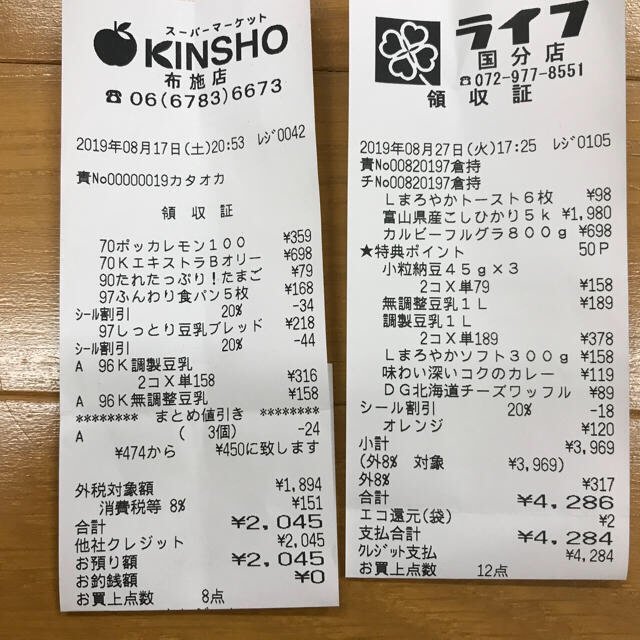
Every value carries a verified on-page location — bbox + 4-point vertices + match_ratio — on a 0–1000 normalized grid (0,0 top-left → 1000,1000 bottom-right), the same shape the live API returns. Hover a field to trace it back to the pixels it came from.
The flow: source image → extracted sheet → highlighted location → CSV export
At its core, using space ocr comes down to four steps. (1) Send the image of a receipt, invoice, or delivery note → (2) it's extracted into a sheet with fixed columns, one document per row → (3) click a value and the matching spot on the source image lights up so you can verify against the original → (4) export to CSV and import it straight into your accounting software. Let's start with dropping in a single document and watching the fields fill in.
Authentication and base URL
The public API has exactly one base: https://api.space-ocr.com — there's no path versioning like /v1. Each request authenticates with an HTTP Bearer token using a key that starts with spocr_.
Authorization: Bearer spocr_xxxxxxxxxxxxxxxx
A missing or malformed header returns 401; an unregistered key returns 403. Every response carries an X-Request-Id header (formatted req_xxx), so it's worth logging it for support requests. If you want to generate a client automatically, the OpenAPI 3.1 spec is published at GET /openapi.json.
The shortest path — built-in invoice and delivery-note templates
The fastest approach is to pass a built-in template in templateId. For invoices, use templateId: "invoice"; for delivery notes, templateId: "delivery". The engine already knows what fields an invoice has, so you don't need to define them one by one. You can pass the image either as a URL or as pure base64 (imageType is inferred automatically from whether the value starts with an http(s):// prefix).
curl -X POST https://api.space-ocr.com/ocr/fields \
  -H "Authorization: Bearer spocr_xxxxxxxxxxxxxxxx" \
  -H "Content-Type: application/json" \
  -d '{
    "image": "https://example.com/docs/delivery-0831.jpg",
    "imageType": "url",
    "templateId": "delivery"
}'The camelCase names are the canonical ones. Use imageType / templateId / autoFields. The legacy snake_case forms (image_type / template_id / auto_fields) still work but are deprecated — prefer camelCase in new code. And remember: templateId: "invoice" for invoices, templateId: "delivery" for delivery notes.
The shape of the response — every value comes with its source
On success you get back { status: "success", data: { ... } }. Each extracted value carries source information, and the field_bboxes map gathers the coordinates per field.
bbox— an axis-aligned rectangle{ xmin, ymin, xmax, ymax }. The coordinates are integers on a grid normalized to 0–1000 (0,0 is top-left, 1000,1000 is bottom-right), independent of the image's pixel size. To convert to pixels:pixel_x = bbox_x / 1000 × image_width.vertices— four{x, y}points in top-left → top-right → bottom-right → bottom-left order. This is an oriented (rotation-aware) rectangle that follows the document's tilt, so it wraps neatly around even a phone photo taken at an angle.match_ratio— the fraction of that value's characters that were actually found on the page (0–1). 0.85 or higher is treated as a confident match, and1.0means every character was found on the page.bbox_source— a label for how the coordinates were derived.vision_symbol_match(the normal path, where character matching landed at 0.85 or higher — accompanied by the realmatch_ratio),token_id/token_id_hybrid(the path that pulls Vision's word tokens using the word-token hints the LLM returned),low_confidence(character match below 0.85 — needs review), andshared_value(propagated from a merged cell).
{
  "status": "success",
  "data": {
    "total": "2,045",
    "field_bboxes": {
      "total": {
        "bbox": { "xmin": 595, "ymin": 974, "xmax": 781, "ymax": 1000 },
        "vertices": [
          { "x": 594, "y": 975 }, { "x": 781, "y": 972 },
          { "x": 781, "y": 998 }, { "x": 595, "y": 1000 }
        ],
        "match_ratio": 0.93,
        "bbox_source": "vision_symbol_match"
      }
    }
  }
}The coordinates aren't taken on the AI's word. All the language model returns is the text of each value and the hint (wid) for the word token it used — never the coordinates themselves. The engine first matches that text character-by-character against the symbols Vision OCR actually detected on the page, so the rectangle lands on the very pixels where those characters were really found, and each value gets a match_ratio showing how much of it matched. When the LLM does return a word-token hint, those token coordinates may override some fields — but the hint can carry noise (stochastic drift, like grabbing the neighboring row in a repeated table), so it's never trusted blindly; it's validated and corrected against column and row consistency before being used. The point isn't "the AI never gets it wrong" — it's that every value is re-matched against the page, with a score recorded for how much it matched. For details, see how bounding boxes make OCR auditable.
When the template isn't enough — custom fields
Real-world invoices have fields the generic template doesn't name — a purchase-order number, a payment-terms code, a project tag, and so on. For those, instead of (or alongside) templateId, you pass an array of FieldSpecs in fields. Each FieldSpec is { name, type, description?, children? }. If you send both fields and templateId, fields wins.
description is where you steer the model — you can write plain-language instructions for what to pick up and how. And the combination of type: "array" and children is how you pull out repeating line-item rows: define the child schema once, and you get back as many rows as there are.
import requests, base64, csv

with open("delivery.jpg", "rb") as f:
    b64 = base64.b64encode(f.read()).decode()

resp = requests.post(
    "https://api.space-ocr.com/ocr/fields",
    headers={"Authorization": "Bearer spocr_xxxxxxxxxxxxxxxx"},
    json={
        "image": b64,
        "imageType": "base64",
        "fields": [
            {"name": "vendor", "type": "string",
             "description": "納品元(取引先)の会社名"},
            {"name": "delivery_no", "type": "string",
             "description": "納品書番号。原文のまま"},
            {"name": "delivery_date", "type": "string",
             "description": "納品日。和暦・西暦は原文のまま保持"},
            {"name": "total", "type": "string",
             "description": "合計金額。カンマ区切りは保持"},
            {"name": "items", "type": "array",
             "description": "明細1行につき1要素",
             "children": [
                 {"name": "name", "type": "string", "description": "品名"},
                 {"name": "qty", "type": "number", "description": "数量"},
                 {"name": "unit_price", "type": "number", "description": "単価"},
             ]},
        ],
    },
    timeout=60,
)

data = resp.json()["data"]

# 明細を CSV へ。Excel と CJK のため UTF-8 BOM で書き出す
with open("delivery.csv", "w", encoding="utf-8-sig", newline="") as out:
    w = csv.writer(out)
    w.writerow(["品名", "数量", "単価"])
    for row in data.get("items", []):
w.writerow([row["name"], row["qty"], row["unit_price"]])Values are kept verbatim. A total of 7,855 comes back as the string "7,855" — comma separators, decimal points, and full-width characters are preserved as-is. Normalization only happens when you explicitly ask for it in a description. The ¥ you see in the UI is decoration, not part of the value. As a defense against CSV mojibake, the trick for CSVs you open in Excel is to write them with a UTF-8 BOM (utf-8-sig) — which the code above does. And the key to stopping line items from "collapsing into one cell" is type: "array" + children, which expands them so that one line item becomes one row.
Click a value and jump to where it came from
Once values have accumulated in a sheet, clicking one lights up the matching spot on the source image. This is the fastest way to spot-check a batch — instead of scanning the whole document, your eye jumps straight to the right place. You can also run it so you prioritize only the fields with a low match_ratio.
At scale, asynchronously — batch upload, jobs, and webhooks
POST /ocr/fields is synchronous, ideal for the one-document case you put inside a request/response loop. To process a whole folder of invoices and delivery notes, send them to a sheet with POST /upload (repeating the multipart files). By default it returns a job array immediately.
{ "path": "...", "jobs": [ { "uniqueKey": "...", "jobId": "...", "status": "pending" } ] }
There are two ways to collect the results: poll GET /jobs/{jobId}, or register a webhook. Webhooks are one URL per space, and every event is HMAC-SHA256 signed in the X-Spaceocr-Signature header. The events worth watching are upload.received, item.created, ocr.completed (with the extraction in data.result), and ocr.failed. Always verify the signature before trusting a payload.
Idempotency, request tracing, and rate limits
A few headers make it safe to retry your production pipeline.
| Header | Role |
|---|---|
Idempotency-Key | On /upload and /create, re-sending the same key replays a cached response for 24 hours (X-Idempotent-Replay: true) — retry safely without double-billing. |
X-Request-Id | Attached to every response (req_xxx). Log it for support. |
Rate limits are 60 requests/min per key and 600 requests/min per uid (a fixed 60-second window). Exceeding them returns 429 with error.code: "rate_limited". The number of seconds to wait is in the JSON body at details.retryAfterSec — not in a Retry-After HTTP header. Base your backoff on the value in the body.
{
  "error": {
    "code": "rate_limited",
    "message": "Rate limit exceeded",
    "requestId": "req_8fa2c1"
  },
  "details": { "retryAfterSec": 12 }
}
From extraction to a queryable sheet
Once you've extracted invoices into a sheet, you don't need to re-run OCR to read them back. GET /view runs server-side queries — where, sort, select, limit, offset — over the stored rows, with no re-OCR and no charge. Coordinates come back by default; add boxes=0 only when you want a lighter response. For example, where=total>=40000 for just the high-value invoices, or sort=-invoice_date for newest first. From there you can export to CSV (with a UTF-8 BOM, so Excel and CJK open cleanly) and use it to import into your accounting software — see turn scanned documents into CSV and convert receipts to CSV for more. The full spec for every endpoint is in the API docs.
Convert PDF pages to images before sending. The OCR engine analyzes raster images directly (JPEG, PNG, GIF, BMP, TIFF, WebP). If you call the API directly, render each PDF page to PNG (or similar) before sending it (if you drop it into the web app, the app rasterizes the pages for you, so you can send the PDF as-is). Integration with freee, Money Forward (マネーフォワード), Yayoi (弥生), and kintone is not via an official API integration — the assumption is that you import the exported CSV. And whether the service meets the requirements of the Invoice System (インボイス制度) or the Electronic Bookkeeping Act (電子帳簿保存法) is something to confirm against each company's operations and requirements (this service does not guarantee compliance with legal requirements).
Pricing
POST /ocr/fields is ¥10 per call, and POST /upload is ¥10 × N pages. Failures aren't billed — if OCR returns no result, you're refunded, and 502 engine errors and ocr.failed events are refunded automatically. Read-only endpoints (GET /space, /view, /amount, /health) are free. The free tier is 100 pages per month with no credit card required, Pro is $39/month, and Business is by inquiry (custom quote).
How to extract invoices and delivery notes with the API
- Get an API keyLog in and issue an API key that starts with spocr_, then attach Authorization: Bearer spocr_... to every request. The base URL is https://api.space-ocr.com.
- Prepare the image (rasterize PDF pages)Have your invoice or delivery note ready as a raster image such as JPEG or PNG. If you call the API directly, render each PDF page to PNG before sending (the web app rasterizes pages for you if you drop a PDF in). Pass the image as a URL or pure base64, and set imageType to url or base64 accordingly.
- Call POST /ocr/fieldsUse templateId: "invoice" for invoices and templateId: "delivery" for delivery notes. For fields the template doesn't cover, define them in fields[] (a FieldSpec of {name,type,description,children}), and expand line items one row at a time with type:"array" + children.
- Verify the responseCheck the bbox, vertices, match_ratio, and bbox_source on each returned value. Cross-check any field with a match_ratio below 0.85 (low_confidence) against the original document.
- Export to CSV for your accounting toolWrite the results to a CSV with a UTF-8 BOM (line items expand into array rows) and feed it into the CSV import of freee, Money Forward, Yayoi, and the like. Once data is stored, you can query it with GET /view — no re-OCR, no charge.
Does the invoice and delivery-note OCR API support Japanese?
Does it work with PDF invoices and delivery notes?
Can I import the extracted data into freee, Money Forward, or Yayoi?
How is extraction accuracy guaranteed? Can I trust the results?
How is personal data handled, and what happens to billing when extraction fails?
Extract your first invoice in a single call
Free tier — 100 pages per month, no credit card required. Every value comes back with the coordinates of where it was read from on the source image.