返回可验证数据的 OCR API
一次 REST 调用返回结构化 JSON,每个值都带 box、quad 和一个验证判定。Bearer 认证、fields 声明或 autoFields、异步任务、签名 Webhook。
大多数 OCR API 只给你一整页文本和一个全页的置信度数字。你还得自己去找发票合计、解析它、再祈祷它落到了正确的位置。space-ocr 的 OCR API 替你完成结构化:用一张图片和一份字段声明做一次 POST(想让 API 自己提出 schema 就打开 autoFields),就拿回具名值的 JSON。
在生产里真正起作用的,是每个值附带了什么。data.cells 用与你声明的 schema 相同的路径索引,里面有这个值被读取的框、框的四个角、verified 判定,以及支撑这个判定的理由。所以你的管线不必信模型的一面之词,而是可以把每个值和它在文档上的实际位置对照核验,再按 data.review.flagged 逐条处理没有对上的值。
一份你可以亲自查看的真实响应
把鼠标悬停在下方任意字段上——发票上的框就是这个值被读取的位置。这是一份真实的解析结果:开票名 ソジュハンザン海物語様、应付金额 ¥84,263、合计 ¥46,752、每一条明细行,全都连同各自的框和核对依据返回。这里没有任何东西是摆拍的。
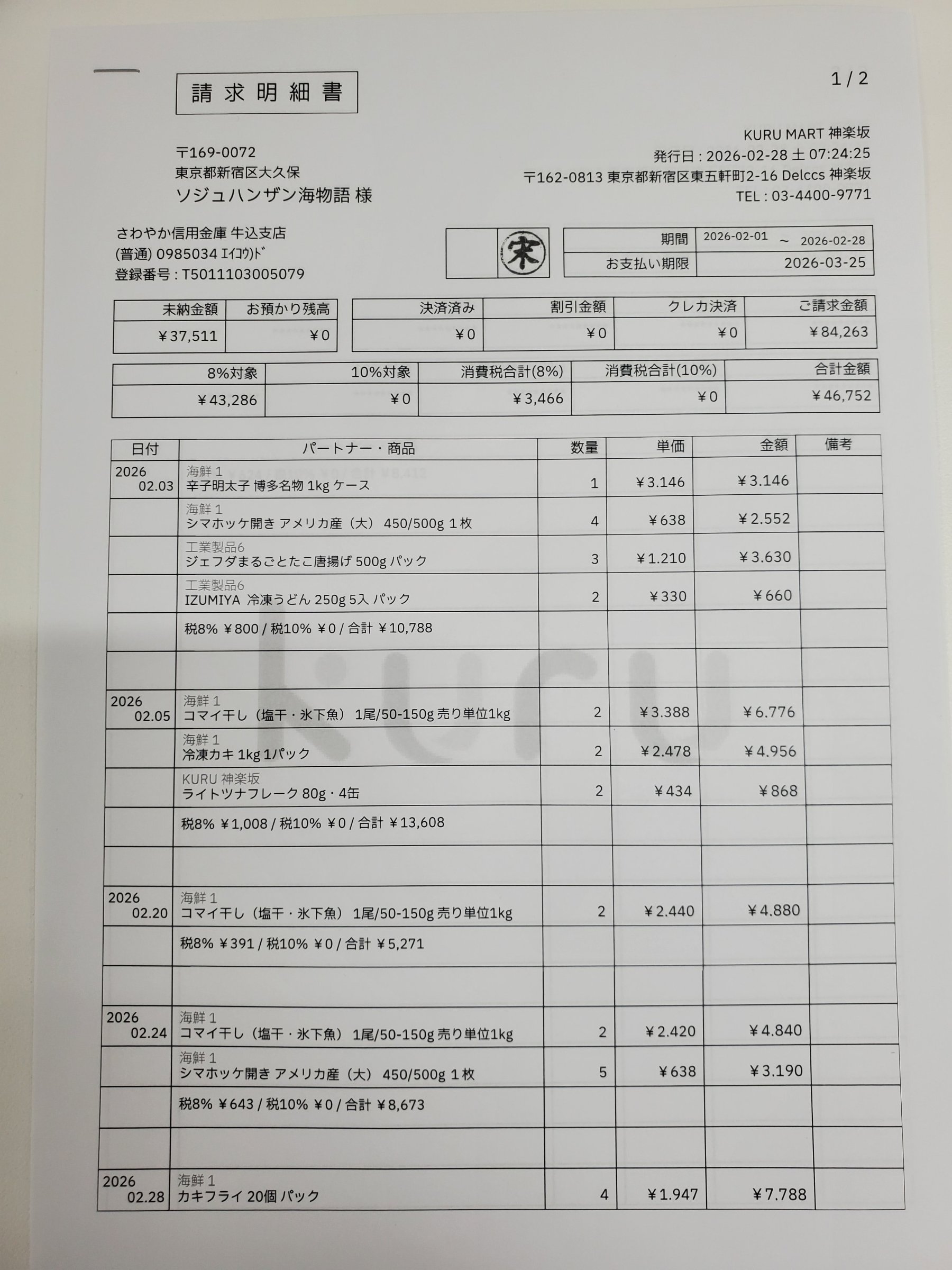
Each value with a box carries a verified on-page location — in data.cells[path], that is box + 4-point quad + evidence.match_ratio — on a 0–1000 normalized grid (0,0 top-left → 1000,1000 bottom-right), the same shape the live API returns. Hover a field to trace it back to the pixels it came from.
space-ocr 里的 OCR API 如何工作
用 Bearer 令牌认证——你的密钥以 spocr_ 开头,基址是 https://api.space-ocr.com。把一张栅格图片以 URL 或 base64 发到 POST /ocr/fields(公开 API 接收图片——JPEG、PNG、GIF、BMP、TIFF、WebP——所以遇到 PDF 就发页面图片)。声明你自己的 fields,或者打开 autoFields 让 API 提出 schema,就拿回 { status: 'success', data: { values, cells, review, image } }。
坐标不是模型编出来的。几何信息只有一个来源,就是 OCR 那一遍;模型只给出值,随后字符匹配器把每个值与页面上实际检测到的符号对齐。对齐的结果落在 data.cells[path] 里:表示位置的 box 与 quad、作为判定的 verified、对不上时带理由的 review,以及 text_match、match_ratio、printed_text 这些 evidence。坐标是值来源的依据,不是它正确的证明——两个引擎也可能在同一处误读上达成一致,所以业务层面的校验请保留。所有坐标都归一化到 0–1000,换算成像素要用 data.image 的 width 与 height。每个响应还带一个 X-Request-Id 头,错误以 { error: { code, message, requestId } } 返回。
curl -s https://api.space-ocr.com/ocr/fields \
  -H "Authorization: Bearer $SPACE_OCR_API_KEY" \
  -H "Content-Type: application/json" \
  -d '{
    "image": "https://example.com/invoice.png",
    "imageType": "url",
    "fields": [
      { "name": "vendor", "type": "string", "required": true },
      { "name": "invoice_date", "type": "date", "required": true },
      { "name": "total", "type": "number", "required": true, "min": 0 },
      { "name": "items", "type": "array", "children": [
        { "name": "description", "type": "string" },
        { "name": "amount", "type": "number" }
      ] }
    ]
}'import os, requests
resp = requests.post(
"https://api.space-ocr.com/ocr/fields",
headers={"Authorization": f"Bearer {os.environ['SPACE_OCR_API_KEY']}"},
json={
"image": "https://example.com/invoice.png",
"imageType": "url",
"fields": [
{"name": "vendor", "type": "string", "required": True},
{"name": "invoice_date", "type": "date", "required": True},
{"name": "total", "type": "number", "required": True, "min": 0},
],
},
timeout=60,
)
resp.raise_for_status()
data = resp.json()["data"]
print(data["values"]) # business data, in the schema you declared
print(data.get("normalized")) # deterministic parse of the declared date and number
for item in data["review"]["flagged"]:
cell = data["cells"].get(item["path"]) # a missing or nobox flag has no cell
print(item["path"], item["reasons"], cell["box"] if cell else None)如何调用 OCR API
- 获取 API 密钥登录并创建一个密钥——它以 spocr_ 开头。向 https://api.space-ocr.com 的每次请求都以 Authorization: Bearer <key> 发送。
- 发送图片向 POST /ocr/fields 发送 image(一个 URL 或纯 base64)和 imageType。PDF 请发页面图片——API 接收栅格格式(JPEG、PNG、GIF、BMP、TIFF、WebP)。
- 声明字段在 fields 里为每个值写上名称与类型,需要规则的地方补上 required、pattern、min/max、enum、label 或 near;明细行表格用带 children 的 array 字段。想让 API 自己提出 schema,就改用 autoFields。
- 读取结构化结果你会拿到 { status: 'success', data: { values, cells, review, image } }。values 是业务数据,cells[path] 装着它的 box、quad、verified 判定与 evidence,review.flagged 列出带理由的待复核路径。
- 扩展与查询用 POST /upload 把许多图片排队(按文件返回任务,签名 Webhook 或 GET /jobs/{jobId}),再用 GET /view 配合 where、sort、select 读取已存储的表格——无需重跑 OCR,也不额外收费。
简单、可预期的定价
每张图片 $0.05(¥10 / ₩100),含每月 100 点数的免费额度,无需信用卡。用 GET /view 重新读取已存储的表格不会重跑 OCR,也不收费。套餐计划增加每月点数、更多表格和存储空间。