Pythonによる請求書解析:REST API活用ガイド
Pythonを使って請求書から構造化データを抽出。シンプルなREST APIを呼び出し、あらゆる請求書画像からJSON形式の項目、明細、そして検証可能な座標情報を取得する手順を解説します。
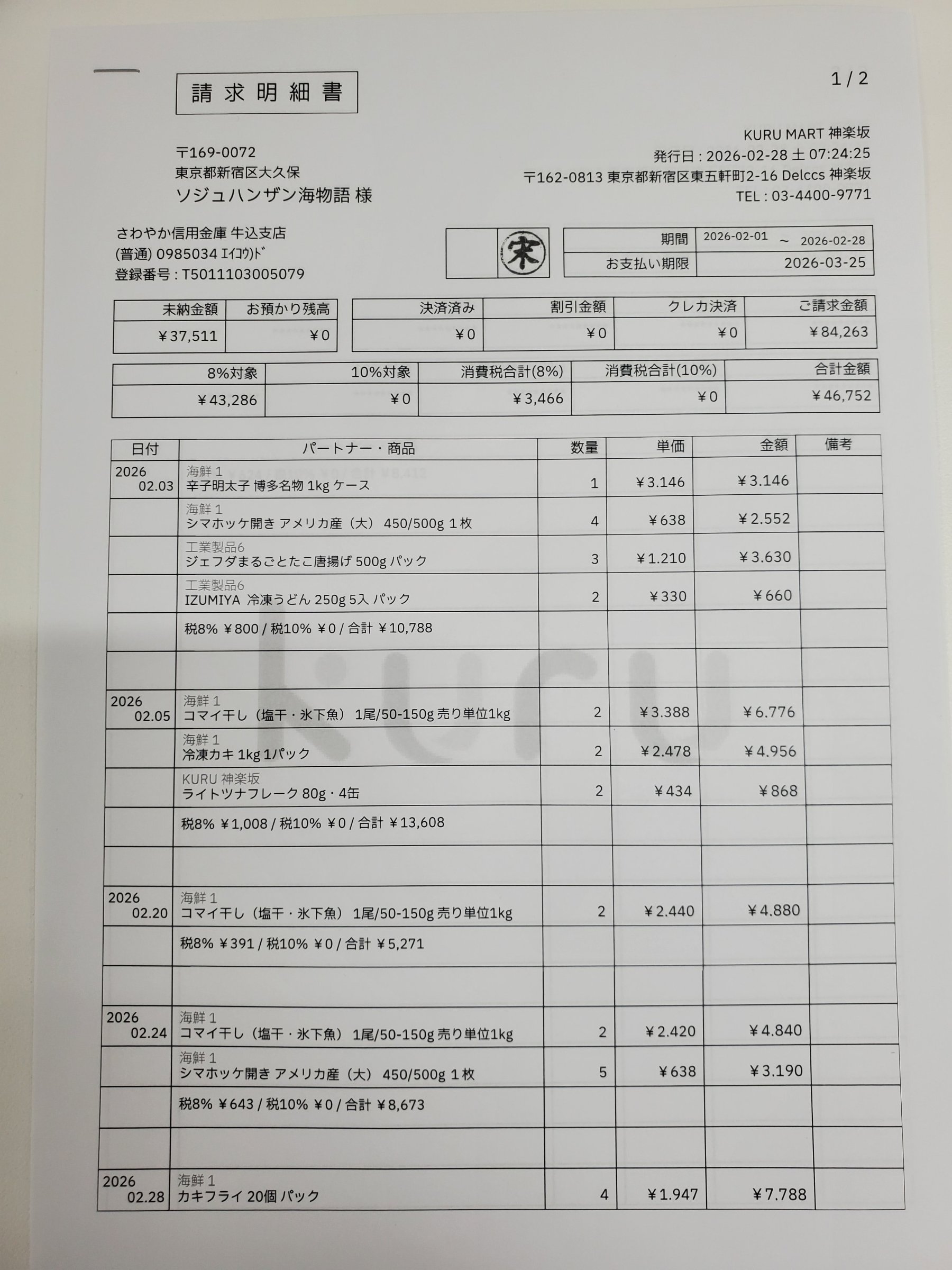
請求書から構造化データを抽出するのは、よくある作業ですが、手間がかかりがちです。スキャンした領収書や取引先の請求書がJPEGやPNGで大量にあり、そこから請求書番号、合計金額、各明細項目を経理や分析のために抜き出す必要がある、といった状況です。多くのOCRツールはテキストの羅列を出力するだけで、結局は不安定な正規表現を駆使して構造を復元するしかありません。
もっと直接的な方法があります。それは、必要な構造化JSONを返すREST APIを呼び出すことです。このAPIを使えば、抽出された全ての値が、元の帳票上のどの位置にあるのかまで正確に追跡できます。以下のインタラクティブデモがその最終結果です。左側の項目をクリックすると、請求書上で該当箇所がハイライトされます。
Each value with a box carries a verified on-page location — in data.cells[path], that is box + 4-point quad + evidence.match_ratio — on a 0–1000 normalized grid (0,0 top-left → 1000,1000 bottom-right), the same shape the live API returns. Hover a field to trace it back to the pixels it came from.
space-ocrはインストールするライブラリではなく、純粋なHTTPサービスです。手順はシンプルです。請求書画像をPOST /ocr/fieldsエンドポイントに送信し、取得したいデータのスキーマを定義するだけです。invoice_numberやtotal_dueといった項目や、品名と価格の列を持つline_itemsテーブルなどを指定できます。APIは宣言したスキーマそのままのJSONをdata.valuesに返し、座標や検証結果は同階層の別キーに分けて格納します。
レスポンスはデータと検証結果を別々の場所に分けて返します。data.valuesは宣言したスキーマそのもので、invoice_numberの"20250430-001"も定義した位置にそのまま入ります。data.cellsはパスをキーにしたフラットなマップで、cells["total_due"]にはその値の紙面上のboxとquad、そしてverified判定が入ります。data.review.flaggedは、もう一度確認する価値のあるパスをreasons付きで並べた短いリストです。下記のスキーマは日付と数値を宣言しているため、data.normalizedにも解析済みの値が返り、values側は読み取ったままの表記を保持します。以下のPythonスクリプトは、これらを順に取り出します。
import os
import base64
import json
import requests

# Get your API key from an environment variable
API_KEY = os.environ.get("SPACE_OCR_API_KEY")
IMAGE_PATH = "./path/to/your/invoice.jpg" # Path to your invoice image
API_URL = "https://api.space-ocr.com/ocr/fields"

if not API_KEY:
    raise ValueError("API key not found. Set the SPACE_OCR_API_KEY environment variable.")

# Declare the schema you want back.
# 'type' adds a deterministic parse under data.normalized; 'required' and 'pattern'
# are checked after extraction and show up in the review list when they fail.
# Declarations never reach the model: they do not change the value, only the signals.
fields_schema = [
    {"name": "supplier", "type": "string", "description": "The name of the company that issued the invoice."},
    {"name": "invoice_number", "type": "string", "required": True, "pattern": "^[0-9]{8}-[0-9]{3}$"},
    {"name": "issue_date", "type": "date", "required": True},
    {"name": "total_due", "type": "number", "required": True},
    {
        "name": "line_items",
        "type": "array",
        "description": "All items listed in the invoice table.",
        "children": [
            {"name": "item_description", "type": "string"},
            {"name": "unit_price", "type": "number"},
            {"name": "quantity", "type": "integer"},
            {"name": "line_total", "type": "number"}
        ]
    }
]

# Read the image file and encode it in base64
with open(IMAGE_PATH, "rb") as image_file:
    base64_image = base64.b64encode(image_file.read()).decode("utf-8")

headers = {
    "Authorization": f"Bearer {API_KEY}",
    "Content-Type": "application/json"
}

payload = {
    "image": base64_image,
    "imageType": "base64",
    "fields": fields_schema
}

print(f"Sending request for {IMAGE_PATH}...")
response = requests.post(API_URL, headers=headers, json=payload)

if response.status_code != 200:
    # Errors use one envelope: {"error": {"code", "message", "requestId"}, "details": {...}}
    try:
        err = response.json()["error"]
        print(f"HTTP {response.status_code} {err['code']}: {err['message']} (requestId {err['requestId']})")
    except (ValueError, KeyError):
        # A body over 32MiB is cut off before the app sees it and comes back as HTML
        print(f"HTTP {response.status_code}: {response.text[:200]}")
    if response.status_code == 429:
        print(f"Rate limited - Retry-After: {response.headers.get('Retry-After')} seconds")
    # 400 invalid_image is not charged and a retry will not help; 502 is refunded and worth
    # retrying; 504 means the 180s sync ceiling was hit, so send that page on its own.
    raise SystemExit(1)

data = response.json()["data"]
values = data["values"]                  # your schema, and nothing else
cells = data["cells"]                    # flat map: path -> box / quad / verified / review / evidence
review = data["review"]                  # what is worth a second look
normalized = data.get("normalized", {})  # deterministic parse of the types you declared
image = data["image"]                    # {"width", "height"} - the frame the coordinates use

print("\n--- Extracted Invoice Data ---")
print(json.dumps(values, ensure_ascii=False, indent=2))

# 'values' keeps the text as it was read; the parsed form lives here.
# A null leaf means the parse failed - the reason sits in cells[path]["normalized"]["error"].
print("\nissue_date parsed:", normalized.get("issue_date"))
print("total_due parsed :", normalized.get("total_due"))

# The review queue: every entry carries a path and a rank-ordered reasons array.
print(f"\n{len(review['flagged'])} of {review['declared']} declared fields were flagged:")
for item in review["flagged"]:
    path = item["path"]
    reasons = item["reasons"]      # reasons[0] is the primary one
    cell = cells.get(path)         # 'missing' and 'nobox' have no cell to point at
    box = cell["box"] if cell else None
    print(f"  {path}: {reasons[0]} ({', '.join(reasons)}) box={box}")

# Where a single value came from
total = cells.get("total_due")
if total:
    print("\ntotal_due")
    print("  box     :", total["box"])       # {"xmin", "ymin", "xmax", "ymax"}, 0-1000
    print("  quad    :", total["quad"])      # four {"x", "y"} points, following the page tilt
    print("  verified:", total["verified"])  # False if flagged, True if a check ran clean, None if there was nothing to check
    print("  evidence:", total["evidence"])  # text_match, source, match_ratio, printed_text ...
    left = total["box"]["xmin"] / 1000 * image["width"]
    top = total["box"]["ymin"] / 1000 * image["height"]
    print(f"  pixels  : ({left:.0f}, {top:.0f}) on a {image['width']}x{image['height']} page")

# Line items: values holds the rows, cells is keyed by the indexed path
print("\nline_items")
for i, row in enumerate(values.get("line_items") or []):
    cell = cells.get(f"line_items[{i}].line_total")
    verified = cell["verified"] if cell else None
    print(f"  row {i}: {row.get('item_description')} x{row.get('quantity')} "
f"= {row.get('line_total')} (verified={verified})")space-ocrは、精度を保つために言語モデルの出力をそのまま信用することはありません。モデルはテキスト値に加え、ページ上のどの単語を使用したかのヒントを返します。次に、エンジンがその抽出値をページ上で実際にOCR認識された文字群と一文字ずつ照合します。この照合が信頼度スコアmatch_ratio(0.85以上で高信頼度の一致)と座標を生成し、いずれもdata.cells[path]に格納されます。boxはxmin・ymin・xmax・ymaxの整数キー、quadは紙面の傾きに追従する4点です。座標はすべて0〜1000に正規化されているため元画像の解像度に依存せず、ピクセル換算にはdata.imageのページ寸法を使います。照合そのものの結果はevidence.text_matchに入り、verifiedはセル全体の判定です。宣言した規則への違反を含め、何か指摘が立てばfalseになります。
APIの料金は、項目数やページの複雑さではなく、リクエストごとに課金されます。画像1枚あたり¥10で、結果の生成に失敗したリクエストは課金対象外です。新規アカウントには、毎月100回分の無料スキャンが付与されます。
- APIキーの取得space-ocrの無料アカウントにサインアップし、ダッシュボードの設定画面でAPIキーを確認します。キーは'spocr_'で始まります。
- 請求書画像の準備請求書をJPEGやPNGなどの一般的な画像ファイルとして保存します。スクリプトから参照できるよう、ファイルパスを控えておきます。
- データスキーマの定義Pythonスクリプト内で、抽出したい項目の名前と型を定義するJSON配列を作成します。明細テーブルもここで定義します。
- Pythonスクリプトの作成requestsライブラリを使い、画像を読み込んでbase64に変換し、AuthorizationヘッダーにAPIキーを設定してhttps://api.space-ocr.com/ocr/fieldsにPOSTするスクリプトを作成します。
- 実行とJSONの処理スクリプトを実行します。`data.values`をデータベースや会計ソフト、分析ツールへ取り込み、`data.review.flagged`に挙がった値だけを先に確認します。