How to Import Scanned Receipts into Google Sheets
Turn scanned receipts into a clean Google Sheet: extract data, export a BOM-safe CSV, import in one click. Values carry source coordinates, and what needs checking is flagged.
That stack of receipts isn't getting any smaller. Whether for expense reports or bookkeeping, the process is always the same: tedious, manual data entry into a spreadsheet. You type a vendor name, a date, a total, and then move to the next line, hoping you didn't make a typo. There's a more direct path from that scanned image to a clean row in Google Sheets.
See how it works on a real receipt below, without uploading anything.
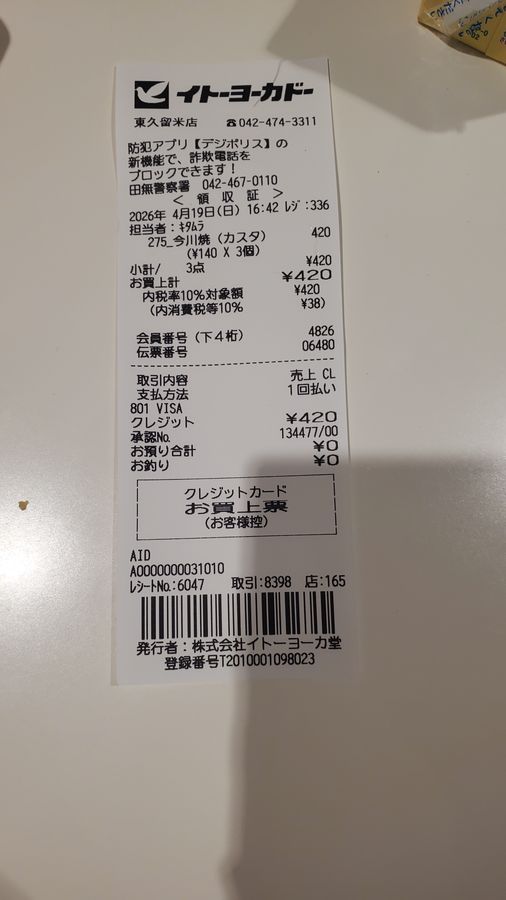
Each value with a box carries a verified on-page location — in data.cells[path], that is box + 4-point quad + evidence.match_ratio — on a 0–1000 normalized grid (0,0 top-left → 1000,1000 bottom-right), the same shape the live API returns. Hover a field to trace it back to the pixels it came from.
The flow is simple. First, you define the columns you need for your receipts—things like Vendor, Date, Total, and maybe some line items. This creates a structured sheet inside space-ocr. Then, you just upload your scanned images (JPEG, PNG, etc.). The service processes each one, placing the extracted data into the correct columns as new rows.
When you're ready, you export the entire collection as a single CSV file.
When you define a column you can also declare its type — number or date. Declaring one does not rewrite the cell: what lands in the sheet, and later in the CSV, is the notation printed on the receipt, and that is the value a person checks against the photo. The declaration adds a second, deterministic layer parsed from that notation (data.normalized over the API) and puts a type_mismatch review flag on values that will not parse. Worth having before you point a SUM or a date filter at the imported column.
This isn't a complex integration. It's a clean, standard CSV file that Google Sheets understands perfectly. Because the file is encoded with a UTF-8 BOM, characters from any language—like the store name 'ライフ' (Life) from one of the receipts in the demo—import without issue. You just use the built-in File > Import function in Google Sheets.
What's different is the audit trail. You're not just getting a list of text values; you're getting data that is permanently tied to its source on the page.
space-ocr does not take the model's word for where a value came from. The language model returns a text value along with hints about which words it read, and the engine then matches that value character by character against the OCR symbols actually detected on the page. What comes back is a bounding box (xmin, ymin, xmax, ymax) in 0-1000 normalized coordinates, plus the coverage of that match (match_ratio, where 0.85 or higher counts as a confident match).
You do not read those numbers row by row. Values whose cross-check comes apart, or that break a rule you declared on the column, are collected into a review list (data.review.flagged over the API, review flags in the sheet). Clicking one highlights that exact spot on the original scan, so a quietly wrong number has somewhere to surface before it reaches your spreadsheet.
The pricing is straightforward. Each successful image processed costs $0.05. If a document fails to process for any reason, you are not charged. Your first 100 images each month are free, with no credit card required to get started.
- Create a Sheet in space-ocrDefine the columns you need for your data, such as Vendor, Date, and Total.
- Upload Your ScansDrag and drop your JPEG, PNG, or other receipt images onto your new sheet.
- Review and VerifyCheck the extracted data. Click any cell to see its origin on the original scan.
- Export to CSVFrom the sheet menu, download all the extracted rows as a single CSV file.
- Import into Google SheetsIn a new or existing Google Sheet, go to File > Import and upload the CSV file you downloaded.