How to Extract Table Data from an Image to CSV
Turn a photo of a table, order sheet, or delivery slip into a clean CSV file. See how space-ocr reads line items and how row-level verification surfaces the values worth checking.
Getting data from a scanned table into a spreadsheet is a classic chore. You have a crisp image of a delivery slip or a purchase order, full of line items. But it's just pixels. The next step is usually tedious, manual data entry, copying each item, quantity, and price into a new row, one by one. The process is slow and a single typo can throw off your entire dataset.
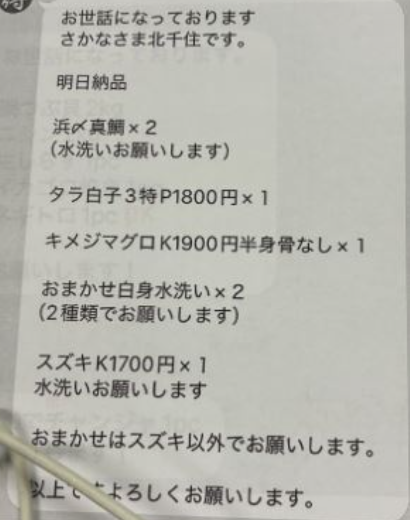
A better approach is to define the table's structure as a schema. Instead of pulling out one block of text, you declare the columns you need. The repeating line-item section becomes an array field with its own children, and the columns that always hold a number get a declared type.
{
  "name": "items",
  "type": "array",
  "children": [
    { "name": "name",   "type": "string" },
    { "name": "qty",    "type": "integer" },
    { "name": "price",  "type": "number" },
    { "name": "amount", "type": "number" }
  ]
}
You never state how many rows the page has — that is up to the document. Each row comes back at an indexed path (values.items[0], values.items[1], and so on), and the same path is the key into the per-value coordinate and verification map, cells["items[0].price"]. A declared type does not change what is extracted, because the type is never shown to the model; it adds a second, deterministic layer beside the values, data.normalized.
This works even for dense tables with repeating values, which can be a challenge. The system uses a large language model to propose the initial extracted text, but it doesn't stop there. For each value, like an item name of "刻みたくあん" or a price of "580", it cross-validates the result. The engine checks the language model's reading against the document's column structure and performs a character-by-character match against the symbols originally detected on the page. When a value slides into the neighbouring row, the characters at those coordinates usually stop agreeing, and the field is flagged for review instead of passing quietly.
"data": {
  "values": {
    "items": [
      { "name": "刻みたくあん", "qty": "3",
        "price": "580", "amount": "1,740" }
    ]
  },
  "cells": {
    "items[0]": {
      "box": { "xmin": 263, "ymin": 460,
               "xmax": 738, "ymax": 523 },
      "quad": [ { "x": 263, "y": 460 }, { "x": 738, "y": 460 },
                { "x": 738, "y": 523 }, { "x": 263, "y": 523 } ],
      "verified": null, "review": null
    },
    "items[0].name": {
      "box": {…}, "quad": […],
      "verified": true, "review": null,
      "evidence": { "text_match": true, "match_ratio": 1.0 }
    },
    "items[0].qty": { "box": {…}, "quad": […],
                      "verified": true, "review": null },
    "items[0].price": {
      "box": { "xmin": 693, "ymin": 460,
               "xmax": 738, "ymax": 488 },
      "quad": […],
      "verified": false,
      "review": { "reasons": ["text_mismatch"] },
      "evidence": { "text_match": false, "match_ratio": 0.62 }
    }
  },
  "review": {
    "unit": "field",
    "flagged": [
      { "path": "items[0].price", "reasons": ["text_mismatch"] }
    ]
  },
  "normalized": {
    "items": [ { "qty": 3, "price": 580, "amount": 1740 } ]
  }
}
The flagged list is the work queue: data.review.flagged names the exact path and the reasons behind it, and cells["items[0].price"] holds the coordinates that were checked. It is not a catch-all. A neighbouring row printing the same number reads as consistent wherever the box landed, and when both engines make the same misread there is nothing left to disagree with. So the row and column errors character matching cannot see are worth handing over as declared rules: pattern for a code column, enum for values your master data already holds, min and max for a plausible range. Every violation arrives in that same review.flagged list.
The last layer is your own arithmetic, and it belongs downstream. Because qty was declared integer and the money columns number, data.normalized carries them parsed — "1,740" is 1740 — so a line check costs nothing beyond the multiplication.
const { values, normalized, review } = data;

const rows = values.items.map((item, i) => {
  const n = normalized.items[i];
  const flagged = review.flagged.some((f) =>
    f.path.startsWith(`items[${i}]`)
  );
  return {
    name: item.name,
    qty: n.qty,
    price: n.price,
    amount: n.amount,
    // look at this row by hand: flagged, or the line does not tie
    check:
      flagged || n.qty == null || n.qty * n.price !== n.amount,
  };
});
A leaf that will not parse comes back null in normalized, with the kind of failure in cells[path].normalized.error and type_mismatch in the review list. Compute from normalized, and keep values for what you print — that is the side carrying the coordinates and the verification.
Each value is held against the page it came from. The model's reading is matched character by character against the OCR symbols actually detected there, and evidence.match_ratio records how much of it lined up; 0.85 or higher is a confident match. The verdict itself is verified, the mirror of review: false when anything was flagged, true when a check ran and nothing was, null when there was nothing to check — a row's union box, for instance. Coordinates come from the matched symbols as box and quad, normalized to a 0–1000 scale against data.image. That is evidence of where a value came from rather than proof that it is the value you wanted, and the values that did not check out are the ones listed in review.flagged.
The cost is based on usage, at $0.05 per image processed. Your account includes 100 free scans every month. If an extraction fails for any reason, there is no charge.
- Define a Sheet SchemaCreate a new Sheet and define your columns. For line items, use the 'array' type and add child columns for name, quantity, price, etc.
- Upload Your ImageDrag and drop or use the API to upload an image of the table to the Sheet.
- Review the Extracted DataThe image will be processed against your schema. Each line item from the table appears as a structured row in the Sheet.
- Correct if NeededClick on any cell to see the corresponding area on the image. Manually correct any values directly in the grid.
- Export to CSVClick the 'Export' button and choose CSV. Your table data, including all line items, is downloaded as a clean, structured file.
What if my table has merged cells or a complex layout?
How does CSV export handle the line items?
Can I process PDF files with tables?
How are the coordinates for each cell determined?
Is there a limit to the number of rows in a table?
Turn Your Image Tables into Data
Get 100 free scans every month. No credit card required to start.