Digitize Paper Receipts for Expense Reports
Tired of manual data entry? Learn how to turn a pile of paper receipts into a clean CSV file for your expense reports. Scan, verify, and export in minutes.
The end of the month brings a familiar task: processing a pile of paper receipts for expense reports. Each one needs to be manually entered into a spreadsheet—a slow, error-prone process that consumes hours.
What if a tool could read the receipt for you? You can see how it works on a real Japanese receipt below. Click any field on the right to see where it was found on the image.
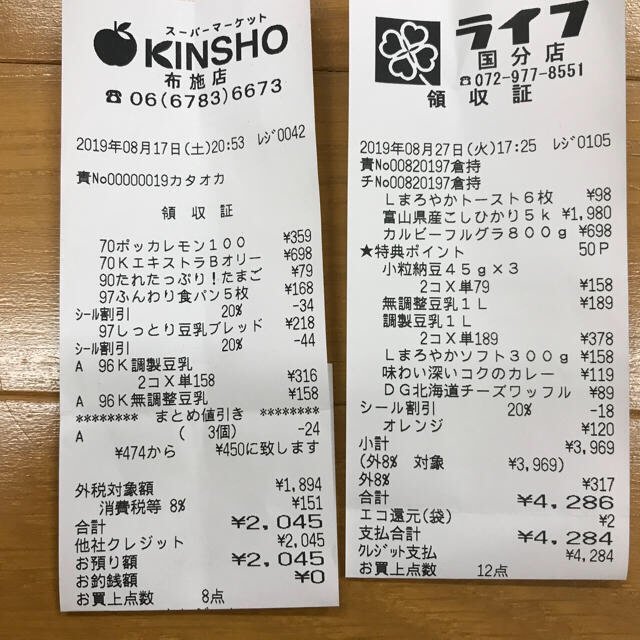
Each value with a box carries a verified on-page location — in data.cells[path], that is box + 4-point quad + evidence.match_ratio — on a 0–1000 normalized grid (0,0 top-left → 1000,1000 bottom-right), the same shape the live API returns. Hover a field to trace it back to the pixels it came from.
The workflow is straightforward. First, you create a 'Sheet' in space-ocr and define the columns you need to capture, like 'Vendor', 'Date', and 'Total'. You can also create an 'array' column for line items. Then, you can drag and drop your receipt images. The app accepts common formats like JPEG and PNG, and if you have a multi-page PDF of scanned receipts, it will automatically process each page as a separate image. The system reads each one and populates a new row in your sheet.
It pays to say what kind of value each column holds. Declare the date column as a date and the amount columns as numbers, and those values come back in two forms: the text exactly as printed on the receipt, and a normalized reading of it — one date format, amounts as plain numbers — which is the shape you want when the figures move on to a calculation or an accounting import. The printed text is left untouched and the normalized reading sits beside it (data.values and data.normalized in the API). Declaring a type does not change how the receipt is read, but it gives the system something to check against: a date column that comes back holding something that isn't a date is marked for review instead of landing quietly in the sheet.
Verification is built in. When you review the extracted data, you can click on any cell—say, the total of "2,045" from the "KINSHO" receipt—and the system instantly highlights the exact location of that text on the original receipt image. This direct link between the data and its source on the page provides a clear audit trail, letting you spot-check figures with confidence.
space-ocr hands back more than the text. A value comes with where it sits on the original image and with its review state, so a figure in the sheet can be read back against the receipt it came from. The model proposes the value; the engine then cross-checks it character by character against the OCR symbols on the page. That comparison yields a match_ratio score (0.85 or higher counts as a confident match) along with the value's coordinates — a box (xmin, ymin, xmax, ymax) and a four-point quad that follows the tilt of a photographed receipt. Both are normalized to a 0-1000 grid, so they hold regardless of the original image's dimensions. Where the comparison doesn't line up, or where the engine can't place the value on the page at all, that value is marked for review rather than passing quietly; in the API those entries are gathered in data.review.flagged.
The pricing is simple: it costs five cents ($0.05) to process one receipt. If the system can't read a receipt or the process fails, you are not charged. Your first 100 scans each month are included on the free plan, with no credit card required to get started. Exporting to CSV costs one credit on the Free and Pay-as-you-go plans and nothing on Starter and Pro; downloading the same data again is free.
- Create a SheetIn your space, create a new Sheet and define the columns you need to capture, such as Vendor, Date, Total, and an array for line items.
- Upload ReceiptsDrag and drop your image files (JPG, PNG) or a multi-page PDF onto the sheet. Each image or PDF page will be processed as a separate entry.
- Review and VerifyClick on any cell in the generated table. The original receipt image will appear with the corresponding value highlighted, allowing for quick verification.
- Export to CSVOnce you have reviewed the data, click the export button to download a single CSV file, ready for import into Excel or your accounting software.
What file types can I upload?
How are line items from a single receipt handled in the CSV?
Will I get garbled Japanese or other characters in Excel?
How does space-ocr verify the location of the data it finds?
What is the cost if an upload fails or a receipt is unreadable?
Do I need to tell it the language of the receipt?
Clear Your Desk of Receipts
Get your first 100 scans free. No credit card required.